To make an AI product video from photos, upload clear images of the item, describe the scene you want, review the product references and ad plan, then generate a short clip. Compare the entire result with your photos before using it: a convincing scene can still change the product's lettering or shape.
This guide uses a Brewista pour-over kettle from the site owner’s project. The goal was a warm Japanese-inspired home setting. It is our own workflow example, not an official Brewista advertisement or a test of the kettle's performance.
The original photo and the complete ad
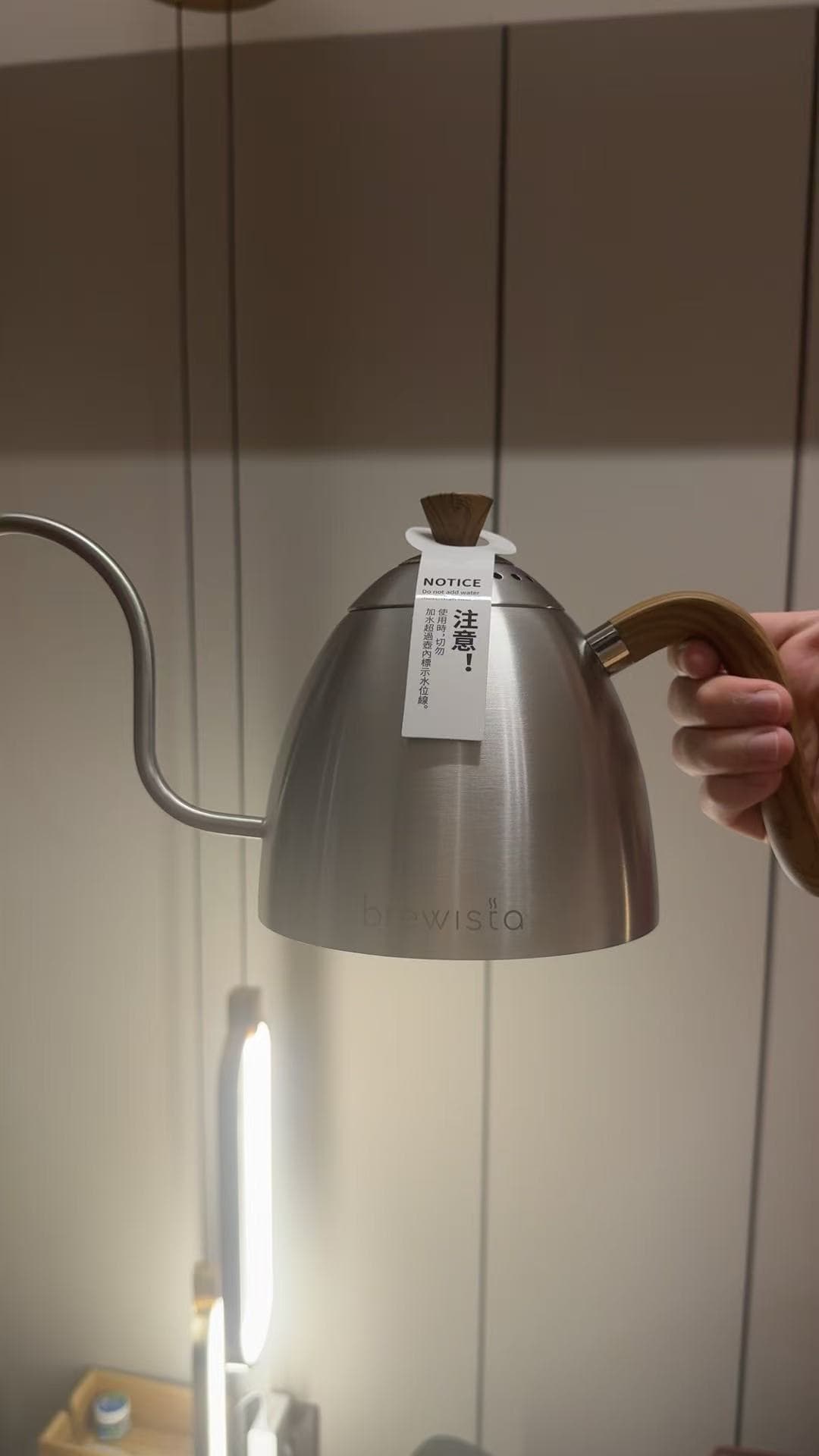
The original request was simple: make a product ad for this kettle with a warm Japanese-inspired feel. The photo below belongs to the same project as the 20-second WAN 3.0 video. The historical video used the original photo directly; a separate clean-reference experiment happened the following day.
The video shown here is the complete 720 × 1280 result with its later music-and-voiceover mix. The original generated picture and this mixed version have identical video streams. Sound was added afterwards in that old workflow; the current workflow described below asks the video model to make the sound.
Choose photos and check the reference image
Choose photos that show the same product variant, with the important parts in focus and fully inside the frame. FlyAIgh accepts 1–4 product photos. More views are useful when they add reliable information; conflicting colors, accessories, or versions make the task harder.
For this kettle, a new photo with the entire spout and handle visible would be a better starting point. A single front view cannot verify an unseen back or underside. Do not treat an invented 360-degree turn as an accurate product demonstration.
The current ad workflow generates clean reference images before planning. Inspect each beside its source. This is generative image processing, so removing a hand or background can also alter the item. Check the silhouette, handle joints, spout, lid, color, and lettering before confirming.
The clean reference below is linked to this same source photo in a separate next-day experiment. It removes the hand, lamp, and room, and reconstructs the missing part of the spout. Its record has a plan but no finished video. It was not the input to the 20-second clip above, so the two cannot prove that extraction improved the video.
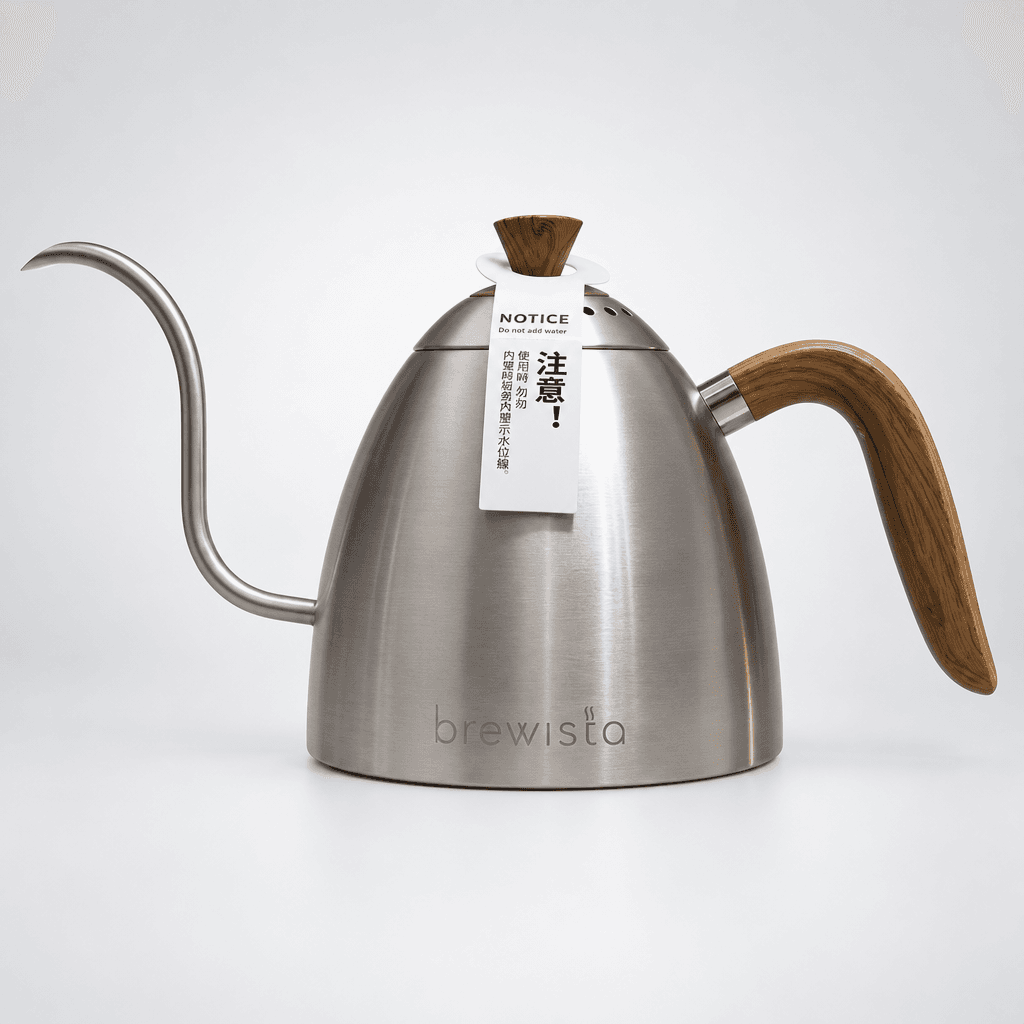
Today's extraction instructions also ask to remove hang tags and warning cards. That change does not guarantee removal. If a reference is wrong, use the original, try extraction again, or supply a better photo; check the selected inputs before generating.
Turn an idea into a workable ad plan
An ad plan should tell you what the viewer will see, not just list attractive adjectives. Start with one visible feature and a simple action. For this kettle, the plan proposed pouring water, handling the kettle, showing materials, and ending on a still product shot.
| Planned time | Picture requested |
|---|---|
| 0–4 s | Close-up of water pouring from the spout into a dripper. |
| 4–9 s | A hand gripping the wooden handle; a slow camera move. |
| 9–15 s | Metal texture and brand lettering on a linen-covered table. |
| 15–20 s | The kettle on the right, with open space on the left. |
These are the timecodes preserved in the original film prompt, not measured cut times. The saved project now holds a later plan version used for the sound mix. We checked the film's own stored prompt rather than presenting the newest plan as the exact generation input.
The proposed selling points included precise water control and a comfortable wooden grip. A photo can show the long spout and wood-looking handle; it cannot establish precision, comfort, or material specifications. Remove or verify such claims against your own product documentation. A ‘photo’ source label is not independent verification.
See the original request and film instruction
The original Chinese text is preserved. It records what was requested, including the old sound direction; it is not a claim that the result followed every detail.
给这个咖啡壶做一个产品广告,要日式温馨感

[STYLE: 9:16竖构图,柔和侧逆光,暖米色调,浅景深,哑光质感。] 画面主体 @brewista 由参考图定义,全程与参考图保持一致:形态、颜色、材质、比例都以参考图为准,产品上印刷的文字只有「NOTICE / Do not add water / 注意! / 加水时请勿超过内壁所示水位线」。参考图屏幕或包装上的人物只是显示内容,不是拍摄对象,不要把他们拍成人物。 总时长20秒,按下面的时间码分成4个镜头,镜头之间硬切换机位,每个镜头内部一镜到底。 0-4秒(第1镜,注水特写):细长壶嘴流出平稳热水注入下方滤杯,蒸汽轻柔升腾,背景为暖色木质桌面。 运镜:ECU固定镜头。 4-9秒(第2镜,握持展示):一只手握住木质把手提起壶身,手指贴合木纹表面,光线勾勒壶身圆润轮廓。 运镜:CU缓慢右移。 9-15秒(第3镜,材质细节):壶身置于亚麻桌布上,拉丝金属纹理与木质壶盖在柔光下形成对比,品牌刻字清晰可见。 运镜:MS微推。 15-20秒(第4镜,静物定格):咖啡壶静止立于画面右侧三分之一处,左侧留出大面积暖色负空间,光影柔和均匀。 运镜:MS固定镜头。 9:16 画幅。 画面中不要添加任何字幕、标题、标语、logo、水印或界面文字;不要生成任何软件界面、主屏、图标、小部件、时钟或天气;设备屏幕只显示参考图里的壁纸画面;唯一允许出现的文字是产品本身印刷的文字。 音频:只要环境音,不要背景音乐,不要旁白。
A brief you can adapt
This is an editable writing example, not the prompt used to generate the kettle clip. In the idea box, use plain language; review the generated shot plan before confirming.
Make the video in FlyAIgh
Open Director and choose Ad. Decide the duration and aspect ratio before creating the project; these cannot be changed later in that project. The current choices are 6, 10, 15, 20, or 30 seconds and 9:16, 16:9, 1:1, 4:3, or 3:4.
- Add 1–4 JPG, PNG, or WebP product photos and a short idea. Choose the model and check the displayed estimate. Begin with a short version that can show your chosen feature clearly.
- Start planning. Compare the extracted references with the originals. Check which set will be used; switch to the original photos or retry extraction if needed.
- Read the ad plan: product, selling points, audience, atmosphere, shots, and sound. Correct unsupported claims. Edit the available plan fields; to change the shot list, describe the changes and use Rewrite plan. That rewrites the whole plan.
- Confirm the plan and generate the clip. This makes one video at 720p, even if the plan contains several shots. An account that has never made a payment must do so before generating; video generation consumes credits.
- Watch the entire result with sound, then inspect detail shots and cuts. Open the result in the Library to download it. Do not assume a completed generation is ready to publish.
Make a product video from your photos
Review the full clip before using it
The kettle clip creates a warm room and recognisable pouring and product shots. It also shows why the full result matters. The following observations refer to approximate positions in the complete video, rather than the planned timing above.
| Approximate point | What to check |
|---|---|
| 0–4 s | Water pours into a dripper. Check where the stream begins, its contact with the filter, and the spout shape; generated water is not a performance measurement. |
| 4–9 s | A hand handles the kettle. The framing and view change, so inspect the fingers, handle attachment, and product proportions. |
| 9–15 s | The camera moves toward the kettle. The warning tag is absent, and the brand lettering changes appearance as the view gets closer. Compare individual letters with the source photo. |
| 15–20 s | The warning tag returns in the wider final view. Decide whether that change is acceptable; do not judge continuity from the final frame alone. |
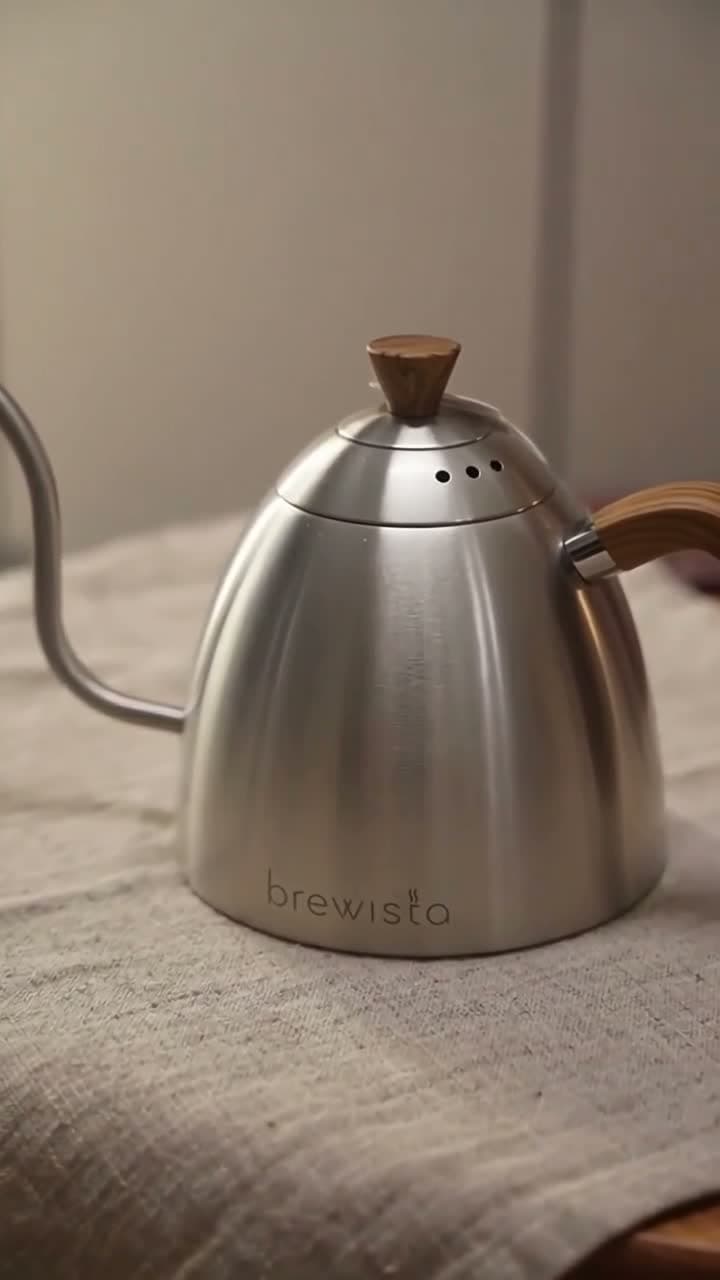
Keep the attractive scene only if the product representation is suitable for your use. If a critical detail is wrong, try a clearer reference or a simpler plan and generate again. For a claim that needs exact geometry, legible packaging, or a real performance demonstration, use verified product footage or stills. A prompt asking for an unchanged logo is not a guarantee.
Sound, revisions, and final text
The example's soundtrack belongs to a historical post-production mix: music plus a Chinese voiceover. Its saved line is ‘一壶好水,慢慢来。brewista,日式手冲的温度。’ The separate clean-reference plan had no voiceover. These are different versions and should not be treated as one recording session.
In the current Ad mode, the video model creates the selected sound during generation: silence, ambient sound, ambient sound with music, or music with voiceover. Voice choices describe a voice to the model; this is not voice cloning or an upload field for your own song. Check the actual words and pronunciation in the result.
Changing the plan's voiceover or music after a clip exists does not change the old clip. Shooting the new version costs credits again. Check the current estimate and allow for retries rather than relying on this old test's cost.
Add exact prices, captions, a separate logo, or a purchase message in your editor afterwards. The ad workflow asks for no added on-screen text and can leave space for it; it does not include an automatic end-card editor. A second aspect ratio needs its own composition and generation.
Evidence and further reading
We checked the two project records, the reference-to-source link, the original stored film instruction, the generation and mix relationship, and the media files. The 20-second video's picture stream is unchanged by the later sound mix. The separate reference experiment has no finished film. Those limits are part of the example, not missing steps filled in by assumption.
For further context, invideo's product-video FAQ also says exact product fidelity is not guaranteed. Runway's image-to-video guidance recommends a clear image and simple motion instructions. These are vendor explanations, not independent tests of FlyAIgh; the kettle observations above come from this example.
invideo: product video and fidelity FAQ
Runway: image-to-video prompting guide
Choosing an AI video model for Facebook ads
Preparing reference images for AI video
Frequently Asked Questions
Can I make a product ad from just one photo?
Yes, FlyAIgh Ad mode accepts 1–4 product photos. One clear photo can support a simple scene, but it cannot verify hidden sides. The kettle example also shows that tags and lettering can change.
Does a clean reference keep my logo exactly unchanged?
No guarantee. Extraction generates a new image and may change small text or details. Compare both the reference and the entire video with the original product photo.
Can AI show the product rotating through 360 degrees?
It may invent plausible unseen parts. A single front photo does not establish an accurate back view. Use real additional views and inspect the result, or use real footage when accuracy is essential.
Can I paste a product link instead of uploading images?
This FlyAIgh workflow starts from uploaded photos, not a product URL. Use images you are entitled to use and verify any product facts in the plan.
Can I create a digital presenter reviewing my product?
This guide covers the product as the main subject. The current ad workflow does not guarantee a recurring on-screen presenter or a talking avatar; do not present a generated scene as a real customer's testimonial.
Can I change just the voiceover without generating again?
Not in the current Ad workflow. Sound is made inside video generation; changing the plan requires a newly generated clip and a new credit charge. The old post-production mix in this example is a historical process.
Are captions, prices, and a final logo added automatically?
No. The workflow avoids added text and can leave open space. Add exact typography, prices, a separate logo, and a final message in your editor afterwards.
Is making the product video free?
Video generation requires a paid account and credits. Check the current model estimate before confirming, and allow for another attempt if details need fixing.
Make a product video from your photos
Prices and capabilities for each model are on their own pages, and the price of a run is shown before you start it.
Make a product video from your photos