Start with the clearest image of your character, then add only the views your video needs. Check the generated face, body and outfit against the original before using the new images as references. Anything the original does not show is a design choice to approve, not a recovered fact.
You do not need a character sheet for every video. A clear portrait may cover a face-led shot; a dance or a turn also needs decisions about the body, clothes and back. Here is how to prepare those references from an image you already have.
What reference images does your shot need?
Choose by what the camera will show. Prefer a readable face, an unobstructed silhouette and lighting that lets you see the design. A dramatic promotional image can be attractive while hiding the details you need to preserve.
| Planned shot | Useful reference | What to decide |
|---|---|---|
| Face or dialogue close-up | A clear face image | Eyes, hair, ears and visible accessories |
| Full-body dance or walk | A full-body image with hands and feet visible | Proportions, clothing, shoes or paws |
| Turn or walk away | A back view consistent with the front | Back of the clothing, hair and tail if relevant |
| Strict side profile | A separate profile view | Nose, jaw and side silhouette; a front view does not define them |
A real example: one tabby image, three views
Our example starts with a single full-body image of a tabby in a white shirt and striped tie. The recorded image-edit request used that image to generate a sheet with a full-body front view, a full-body back view and a face close-up. This is a reference sheet, not a front–side–back turnaround: it contains no side profile.
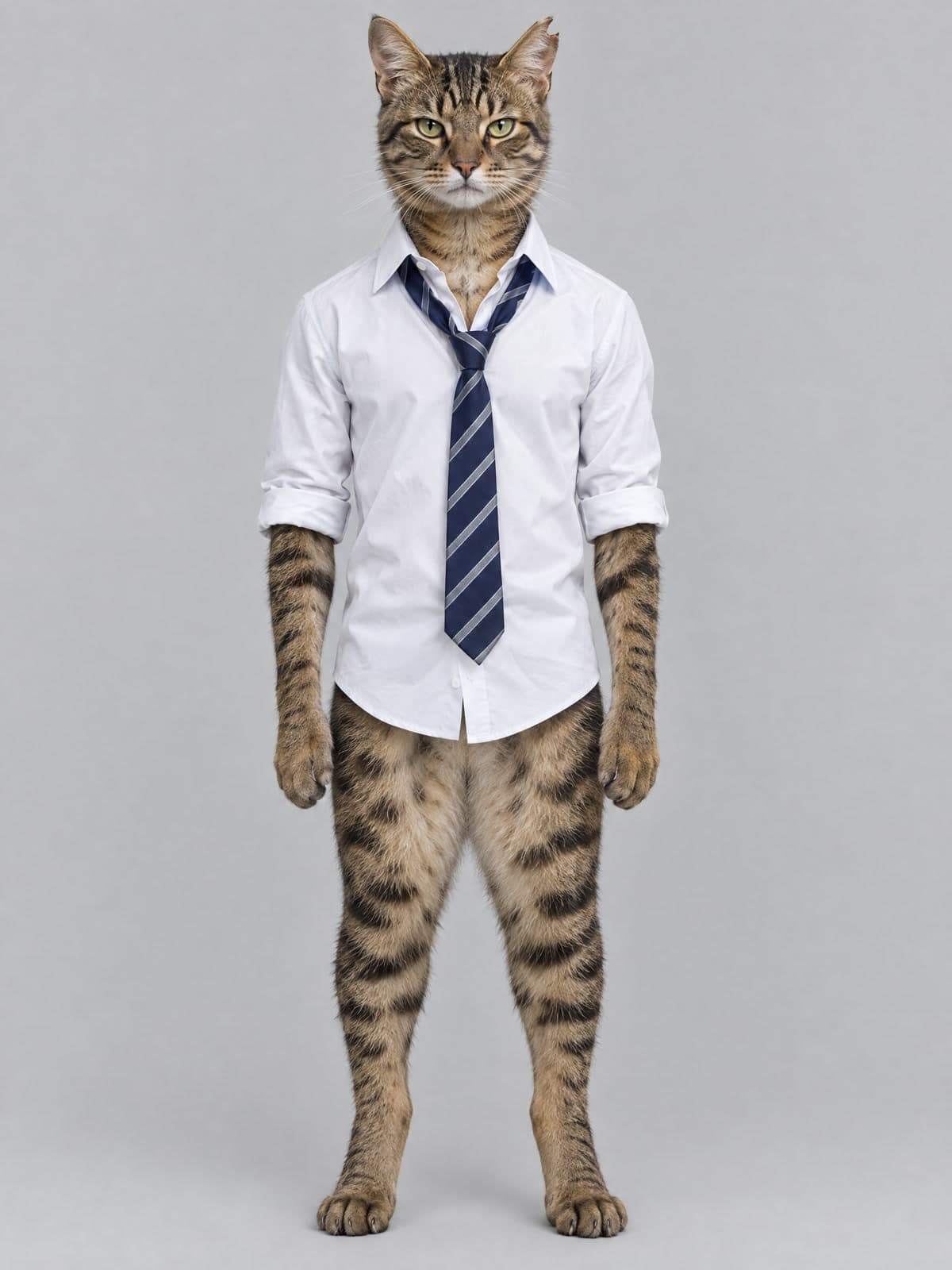
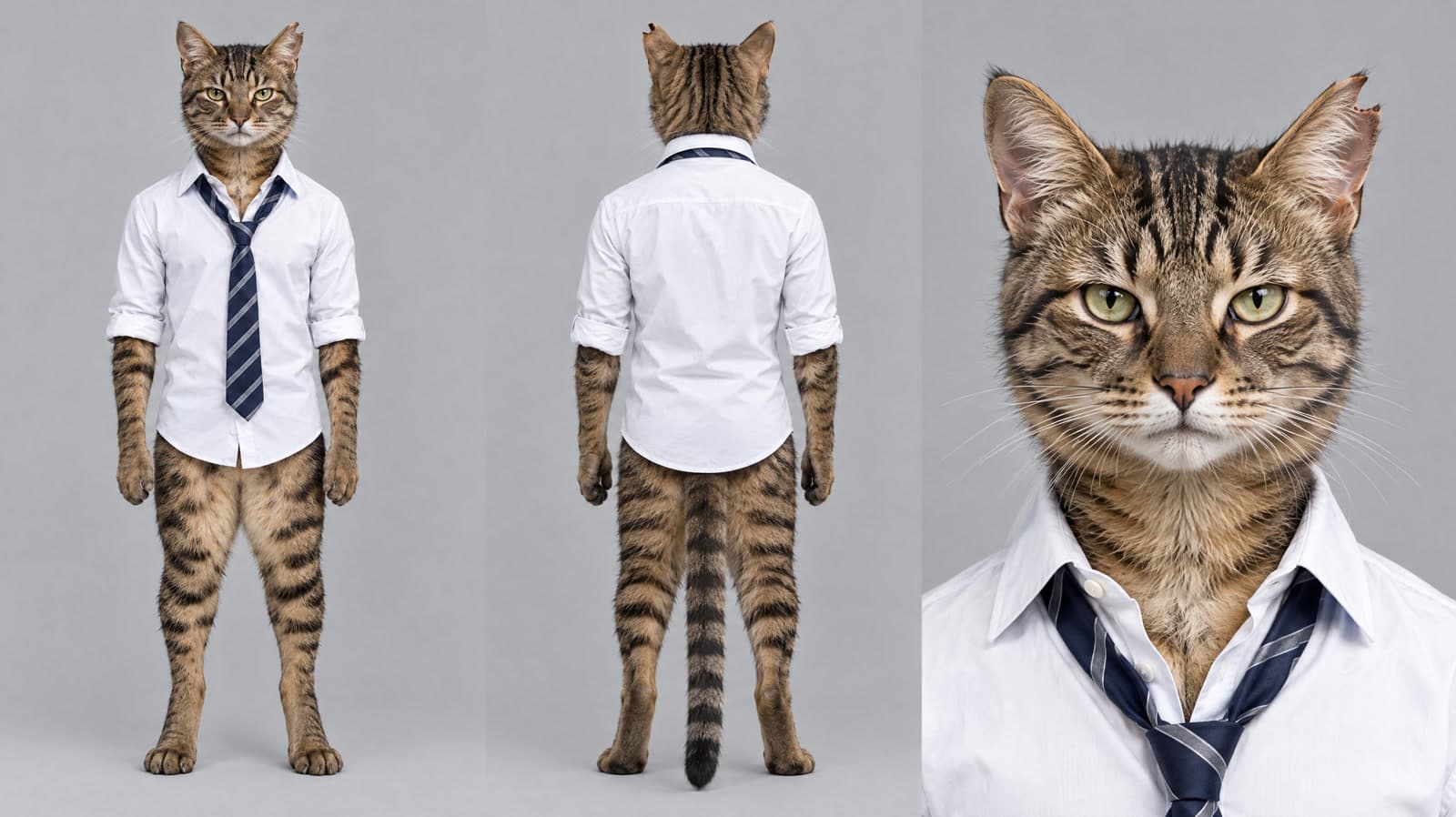
The white shirt, striped tie and notched ear remain recognizable. Yet the tie knot and shirt folds differ from the original; the back view also introduces a visible tail and rear clothing details. That makes this useful for inspecting a candidate design, not evidence of a perfect copy. The rear view cannot be checked against a back that the input never showed.
A character sheet prompt you can adapt
A useful character sheet prompt names the views, preserves known features and states how to handle missing information. The historical request below describes this particular cat. Its instruction to keep everything identical is a target, not proof that the output achieved it.
Read the original generation prompt (Chinese)
Preserved exactly from the recorded request. The adaptable version below is new guidance, not the prompt used for this image.
角色设定图,纯灰色背景,同一只角色的三个视图从左到右横向排列:正面全身、背面全身、面部特写。角色就是参考图里的狸花猫:像人一样用后腿直立,棕色鲭鱼纹短毛、黑色条纹、浅色腹部、琥珀绿色眼睛、左耳有一个小缺口;穿白衬衫,最上面一颗扣子解开,袖子挽起一折,下摆不塞;系一条松开的蓝银条纹领带;腿部是自然的猫毛,不穿裤子。三个视图里角色的长相、毛色、条纹、衣服完全一致。写实摄影风格,影棚柔光,真实毛发。画面里没有任何文字,没有其他角色。Adaptable prompt
Using the attached image, create a reference sheet of the same character on a plain light-grey background: full-body front view, full-body back view and face close-up. Preserve [face and hair or fur], [body proportions], [clothes and accessories] and the original visual style. Keep the whole body visible in the full-body views. For details the source does not show, use this approved design: [back of clothing, lower body, shoes or tail]. Show the same identity in every view, with soft even light, no text and no other characters.
Replace every bracketed field before sending it. If you only have a headshot, decide the outfit and proportions first. If you need a profile, request it explicitly. When the design is not decided, treat the generated back or body as a draft and choose a version before making video.
Check the design before accepting new views
Compare the original and the sheet at a readable size. Looking plausible as a whole is not enough when a small feature identifies the character.
- Identity: compare face shape, eyes, hair or fur markings and distinctive features. For this cat, check the notched ear across the views, remembering that screen left changes when it turns.
- Outfit: compare the collar, tie, sleeves, hem and accessories. Decide whether changes such as this tie knot are acceptable; ask for a correction if they are not.
- Body: check proportions, hands or paws, feet and any tail. Do not accept a newly generated feature just because the rendering looks polished.
- New design: approve unseen details explicitly and keep one consistent version. If the front and back contradict each other, resolve that before passing both to a video model.
Upload a sheet, separate images or a first frame?
An identity reference describes who should appear. A first frame describes the opening picture. Check the selected model and upload field before deciding whether to use the whole sheet.
- Character-reference field: a sheet can collect several views of one identity. Recast can use its extracted sheet as the selected role reference. This does not establish that every video model interprets a collage the same way.
- Separate reference fields: if the chosen workflow accepts multiple images for the same identity, separate views can make each image easier to inspect. Keep them consistent and follow that workflow’s assignment rules; there is no universal best image count.
- First-frame field: prepare the actual opening composition, with the intended character count, setting and pose. A multi-view sheet places several depictions in that picture and is not automatically a suitable opening frame.
Use the reference in FlyAIgh Recast
For a Recast template, prepare one identity per role. The optional reference extraction currently requests front, back and face views; it does not produce a rig or a separately controllable set of body parts.
- Open a Recast template and upload your character image into the intended role slot.
- Review the reference check. Keep a suitable original, or choose the optional reference extraction when you need a cleaner sheet. Check its quote before generating.
- Inspect the result before selecting it. Compare the face, outfit and newly supplied details; you can choose the original instead or request another extraction.
- Check the selected role image and prompt, then generate the video with the available model settings. Review the result at close-ups, turns, full-body movement and cuts.
Reference preparation and video generation are separate steps and may have separate charges. Use the current quote; FlyAIgh video generation requires a paid account and credits. A good sheet still cannot guarantee a stable face or outfit throughout a video.
Example record and further reading
This image-edit example was archived on 2026-09-27, using GPT Image 2.5 Flare, high quality, 2K and 16:9. We checked the recorded input URL against the local source file, plus the prompt and saved output record. It is one historical example, not a controlled success-rate test or a newly generated video. The current Recast workflow was checked separately for this guide.
Runway’s References guide supports the distinction between preparing identity images and generating with them. Recraft’s guide discusses character reference sheets and additional views. These sources provide context; their controls and results are not specifications or performance evidence for FlyAIgh.
Make your character follow an existing dance
Assign references to two characters in a video
Keep a character consistent across shots
Frequently Asked Questions
Can I make an AI video with only one character image?
Yes, if the chosen workflow accepts it and the image provides the details your shot needs. A clear full-body image can be enough to start. Extra views are useful when the camera must show information missing from that image; they are not mandatory for every clip.
Can AI turn a headshot into a full-body character sheet?
It can generate a candidate body and outfit, but a headshot does not establish what those should be. Specify the missing design, inspect the result and approve one version. Do not describe a generated body or back as recovered from the portrait.
Is this a three-view turnaround?
This example has a front view, back view and face close-up. A front–side–back turnaround is a different arrangement. Request a side profile separately if the intended shot needs one.
Why might a character sheet lead to several characters in a video?
A sheet shows several depictions within one image. If used as an opening composition, those depictions may be treated as scene content. Check the input field and model guidance. This is a possible mismatch, not proof that every sheet will produce duplicate characters.
Do I need a new sheet for each video?
Not if the character design is unchanged and the existing references fit the new shot. Add or update a view when the outfit or visible details change. For two identities, prepare separate references and check each role assignment.
Open Recast templates
Prices and capabilities for each model are on their own pages, and the price of a run is shown before you start it.
Open Recast templates