To generate images and videos with Claude Code, connect it to an external generation service through MCP. Have it choose a supported model, quote the exact request, and wait for your approval. Generate the still first, use its completed generation ID as the video's first frame, then download both assets into your website project.
The example is a coffee shop homepage: a warm interior image, a gentle camera move, and readable page text beside it. You can adapt the instructions to a portfolio or product page. Keep the image, video, and page layout linked by explicit filenames and generation IDs.
Can Claude Code generate images and videos?
Claude Code coordinates the task and edits the website code. MCP gives it access to external tools. FlyAIgh sends the image or video request to the selected generation model and returns the job and output. Writing SVG or HTML and understanding an uploaded picture are different capabilities from generating a photograph or a video.
This division matters when choosing a solution. For a simple icon, chart, or CSS animation, code may be enough. For a photographic scene or generated camera movement, use an appropriate media model. Connecting MCP does not make every model support the same inputs, duration, or resolution.
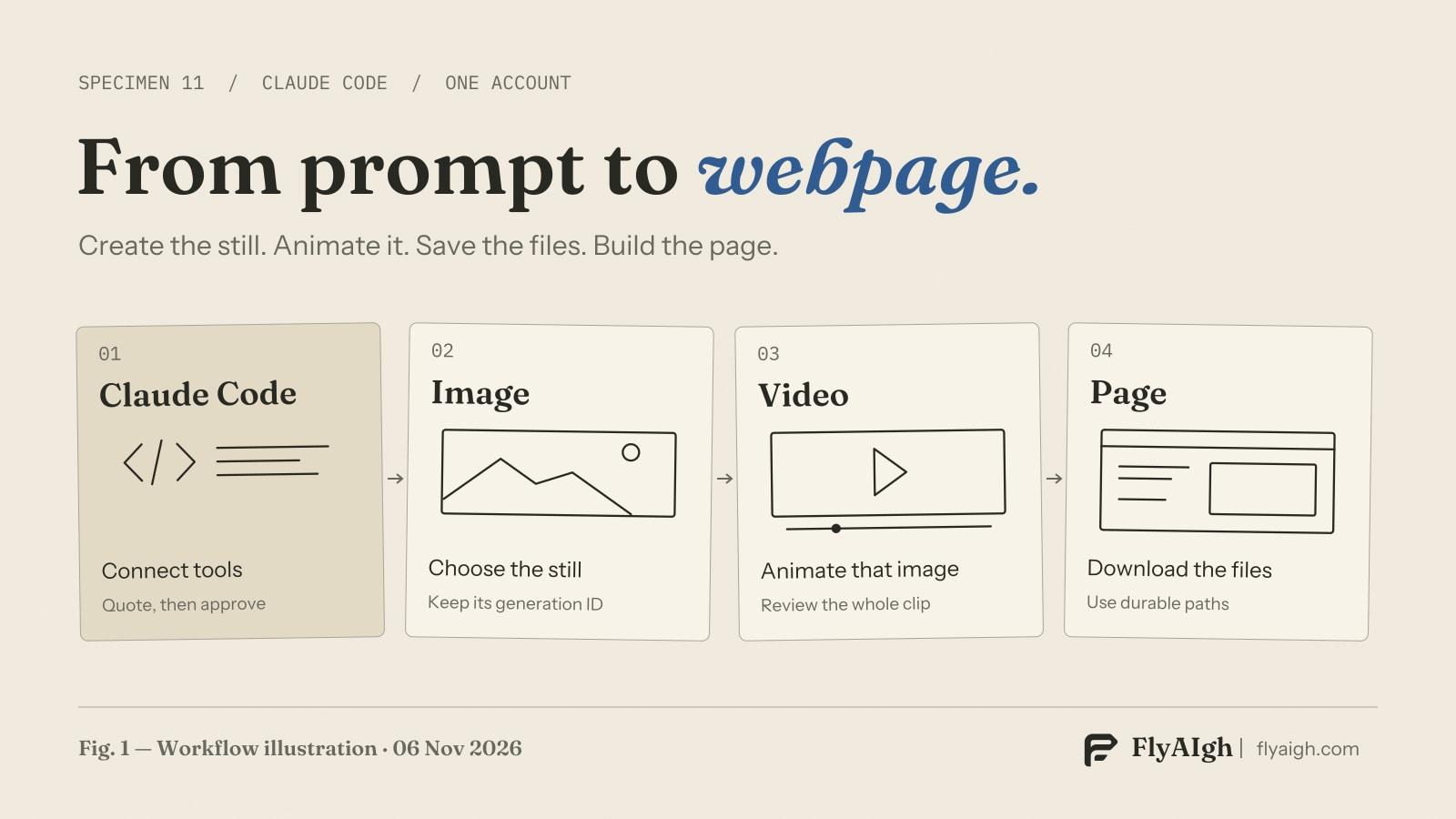
Connect the generation tools
You need a working Claude Code installation and login, plus an active FlyAIgh Basic subscription or above. The Starter Pack alone does not include MCP access. Claude Code account costs and FlyAIgh generation credits are separate. In FlyAIgh, open Tools → MCP, create an API key, and optionally set its daily credit cap.
Use the HTTP connection command below in your own terminal, replacing the placeholder with your key. Treat the saved client configuration as a secret: do not commit it or put the key in website code. The FlyAIgh MCP setup guide below has the current connection instructions. In Claude Code, open /mcp to check the connection; claude mcp list also lists configured servers.
claude mcp add --transport http flyaigh https://www.flyaigh.com/api/mcp \
  --header "Authorization: Bearer YOUR_FLYAIGH_API_KEY"
Before generating, ask Claude Code to call get_balance and list_models. Choose the model ID and parameters from those results, not a guessed model name. For your own photo, call upload_file; if it returns a signed upload URL, upload the file bytes there before using its file_id. A local pathname or an arbitrary image URL is not a substitute for that reference ID.
Create an image for a specific place on the page
Start with the layout, not just a style adjective. Decide where the image sits, its aspect ratio, the subject's position, and whether the page needs empty space. In this example, use a 16:9 image in a media panel and keep the headline as HTML beside it. This keeps text editable and easier to read on a phone.
Ask for the available image models and a quote for the chosen settings. Prices shown by list_models are examples for default settings; quote prices the specific request. Confirm that request before generate_image runs. Changing the model, resolution, quality, or references can change the quote.
When get_job reports completion, inspect the image before animating it. Check composition, unwanted lettering, invented objects, and whether the subject still fits a narrow screen. Save the approved image's ID with its prompt and model. If you have several versions, select the exact one; the newest result is not automatically the approved result.
An instruction you can adapt
Turn the approved image into a video
After approving the still, choose a video model that supports i2v. Pass the completed image generation ID as first_frame. This connects the video to the image you actually selected; a text-only request describing a similar scene would create a new scene instead. Quote the chosen duration, resolution, aspect ratio, and audio setting before generating.
Describe motion separately from the picture: a slow camera push, mild steam, a stationary cup. Start with the shortest supported duration that suits the page. Avoid asking for a complete scene change when your goal is a calm homepage visual. A first frame guides generation; it does not lock every object or logo pixel in place.
Use get_job with the returned video job ID to follow progress. When it finishes, watch the whole clip, with sound if included. Inspect the cup's shape, edges, camera movement, and last frame. A completed job can still have visual defects. If you plan to loop it, check the end-to-start jump rather than assuming the result is seamless.
An instruction you can adapt
Download the files and put them on your website
Download the approved image and completed video. Private-file download links returned by get_job expire after 1 hour; call get_job again for a fresh link if needed. Do not use a temporary signed URL as your permanent website source. Keep an asset record linking the image ID, video ID, prompt, model, and final local filenames.
For a Next.js project, files in public/media are served at /media. For another framework, use its static-assets directory or your own CDN. The example assumes an actual JPEG poster named hero-poster.jpg and a browser-playable MP4 named hero.mp4. Convert files if necessary; changing a PNG suffix to .jpg does not convert its contents. Keep API keys and generation calls out of the public page.
The HTML example gives the video native controls, an image poster, and user-started playback. preload="none" avoids requesting the video in advance, although browser behavior can vary. The layout stacks on narrow screens and keeps text separate from the media. In React JSX, use className, playsInline, and other JSX attribute spellings.
An instruction you can adapt
<section class="hero">
  <div>
    <h1>Your page heading</h1>
    <p>Your introduction</p>
  </div>
  <video controls playsinline preload="none"
    poster="/media/hero-poster.jpg"
    width="1280" height="720">
    <source src="/media/hero.mp4" type="video/mp4">
    <a href="/media/hero.mp4">Download video</a>
  </video>
</section>
<style>
  .hero {
    display: grid;
    grid-template-columns: minmax(0, 1fr) minmax(0, 1fr);
    gap: 2rem;
    align-items: center;
  }
  .hero video {
    display: block;
    width: 100%;
    height: auto;
  }
  @media (max-width: 48rem) {
    .hero { grid-template-columns: minmax(0, 1fr); }
  }
</style>
Keep revisions and spending under control
Approve each generation separately and compare the quote with your balance and any key cap. An API key's daily cap helps limit spending; it does not make a sequence of revisions free. If available in the tool call, expected_credits protects against a changed quote, but is not a total project budget.
For an uncertain submission, check the existing job before retrying. Reusing an idempotency_key for the same request within 24 hours avoids creating a duplicate; changing parameters under that key is a conflict. A new creative version is a new request and can cost credits. A successfully generated clip that you dislike is not the same as a failed job.
- No connection: check /mcp, the HTTP endpoint, the API key, and an active eligible subscription.
- Reference rejected: use an image that has completed under your account, or a fully uploaded file_id. For i2v, put it in first_frame.
- Media disappears: refresh an expired download link with get_job and host the downloaded file at a stable path; do not regenerate it.
- Playback or cropping looks wrong: check the file format, network response, mobile dimensions, and CSS. A cover crop can hide part of the subject.
Sources and related guides
The capability distinction follows Anthropic's documentation; tool names and reference handling follow FlyAIgh's current MCP implementation. The page example uses standard HTML video behavior. Check live model options and quotes when you run the workflow.
- Claude: image-generation capabilities
- Claude Code: connecting tools with MCP
- FlyAIgh: MCP setup and tool reference
- MDN: the HTML video element
- Animate an image in FlyAIgh
- Prepare useful reference images
- Make a product video from photos
Frequently Asked Questions
Can Claude Code generate images without an image tool?
Claude Code can write SVG, HTML, and drawing code. For the photographic images in this workflow, it calls an external image model through MCP. Image understanding alone does not provide that generation capability.
Can I animate my own photo instead of generating a new one?
Yes. Upload a photo you are entitled to use with upload_file, complete the upload, then use its file_id as first_frame with an i2v-compatible model. You can skip the image-generation step.
Is Claude Code image and video generation free?
This FlyAIgh workflow requires an active Basic subscription or above and generation credits. Claude Code access is separate. Ask for an exact quote before each generation; this guide does not promise free attempts.
Why does my reference URL or local path fail?
This workflow uses your completed generation ID or uploaded file_id as the reference. An arbitrary web URL or local path does not identify an owned, ready asset. For a signed upload, finish transferring the bytes first.
Does downloading or embedding require generating again?
No. Use get_job to retrieve the existing output and refresh a private download link. Save the file to your own site or CDN. A new generation is only needed if you want a new result.
Can the result be an autoplaying, seamless video background?
It can be used as a background, but seamless motion is not guaranteed. Inspect the loop boundary. Browsers may block autoplay; if you add it, use muted playback, a pause control, and a static alternative for reduced-motion preferences.
Will the same instructions work in ordinary Claude chat?
This guide covers Claude Code with a configured HTTP MCP server. Other clients have their own connection and tool-permission flows. A Claude chat login alone does not configure the FlyAIgh tools described here.
Connect Claude Code to FlyAIgh
Prices and capabilities for each model are on their own pages, and the price of a run is shown before you start it.
Connect Claude Code to FlyAIgh