To create an AI video transition between two images, choose a model with start and end frame support. Put the opening image in the first-frame slot and the destination image in the last-frame slot, then describe the action and camera movement connecting them. Review the complete clip: matching the endpoints does not guarantee a continuous shot.
This workflow is useful when you know the before and after states: a dim scene lighting up, an object opening or a subject reaching a new pose. If you only need two stills to fade into each other, a dissolve in an editor gives you direct control without asking a model to invent movement.
Two images and the complete video result
In this historical FlyAIgh Director example, a dark stone formation becomes a field of glowing blue runes. The two images below are the archived first- and last-frame images linked to the same shot, not stills extracted from its output. Seedance 2.0 generated the associated video with a four-second, 16:9 request.
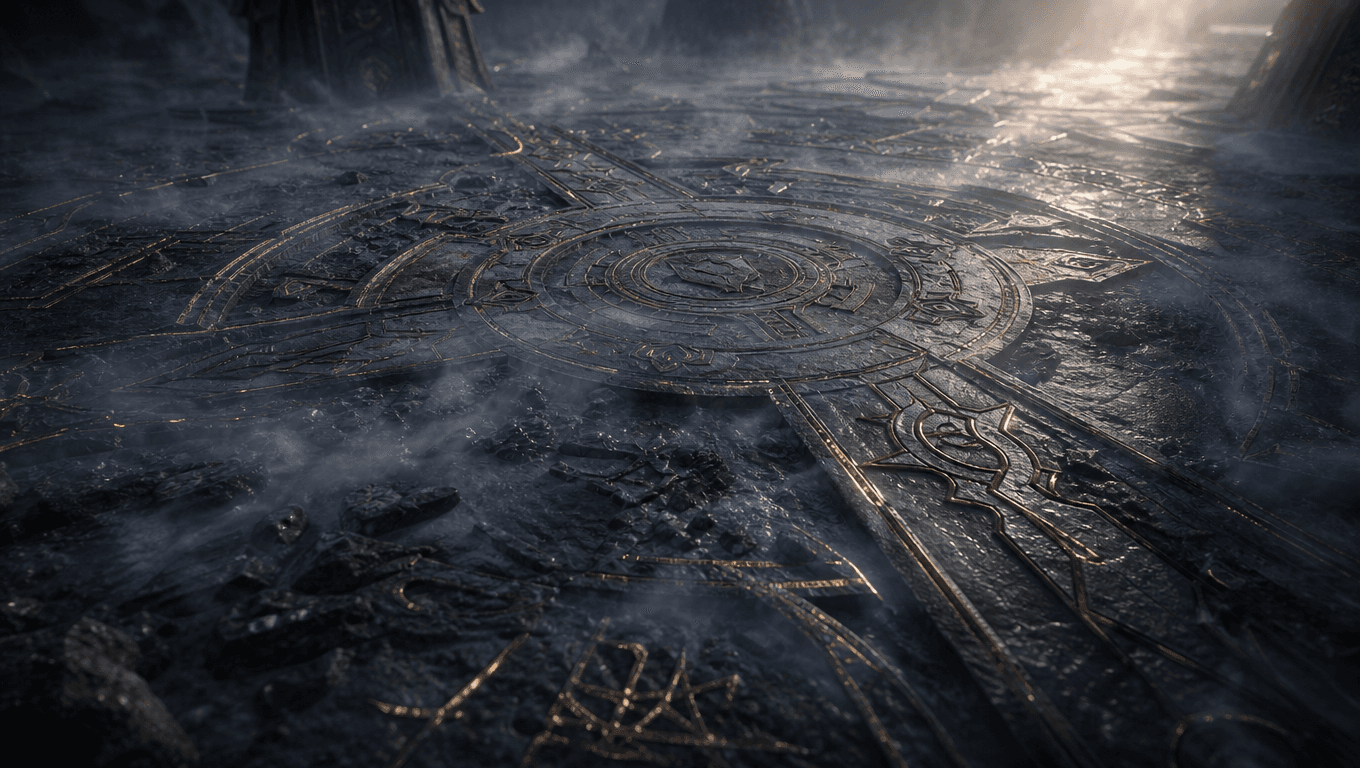
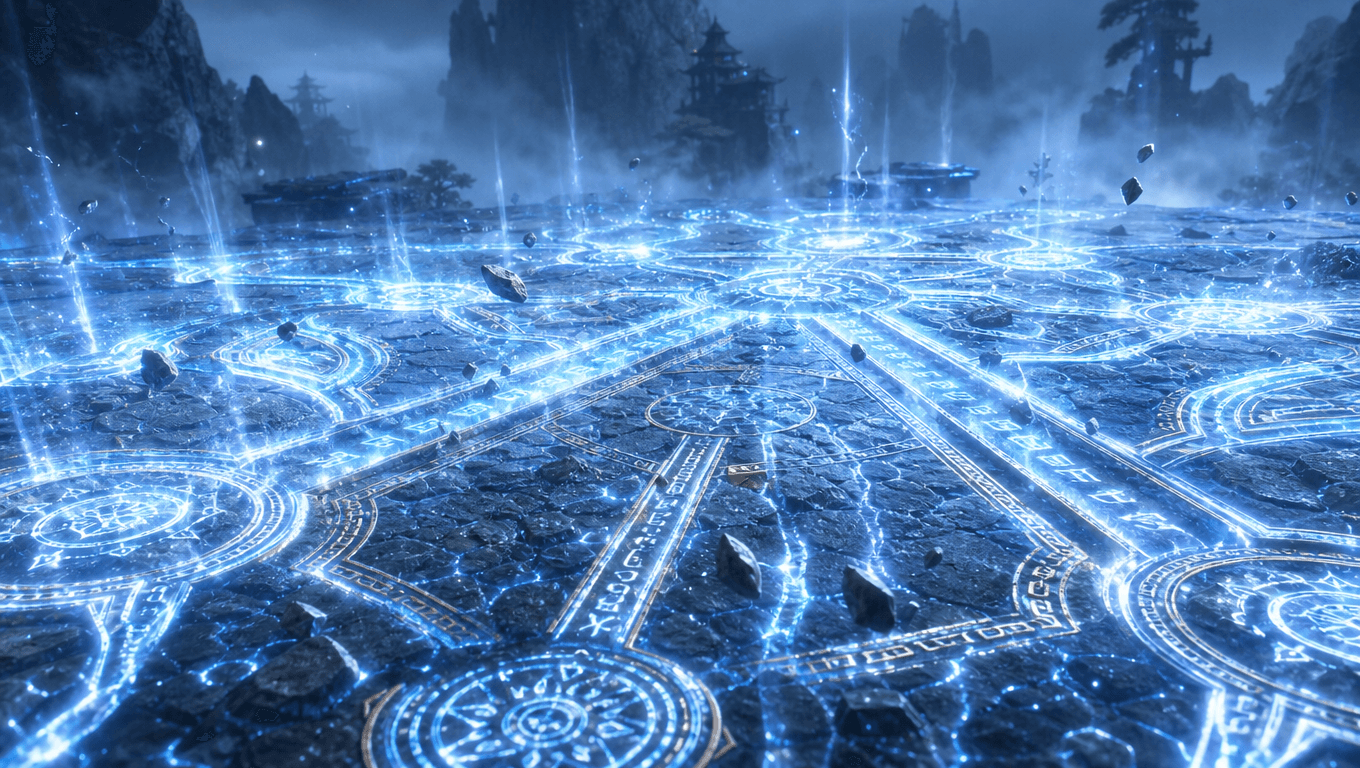
The clip begins with the dark circle, lights up the ground and reaches the blue scene with floating stones. Around two seconds, the composition changes abruptly to a wider view. The historical prompt asked for one unbroken shot and a nearly fixed camera, so this result did not fully follow that request.
The endpoint images explain why that request is demanding: they differ in more than brightness. The circle layout, horizon and camera angle change too. This example illustrates a usable before/after transformation and a continuity problem; it does not prove a seamless transition or establish why the model made the cut.
Choose images that can belong to the same shot
First decide what each uploaded image is meant to control. Two uploads are not automatically two endpoints.
- One first frame defines the opening composition; the prompt guides what follows.
- First and last frames specify the opening and destination of one generated clip.
- Character reference images describe identity or appearance. Two views of the same character are not necessarily the first and last pictures of the video.
- Compare framing: use the same output ratio and check the crop, subject size and horizon in both images.
- Compare the scene: for a continuous shot, keep the location and fixed objects recognizable. In our example, the floor pattern changes as well as the light.
- Choose one main change: start with a pose, object state or lighting change instead of changing identity, location and camera angle together.
- Allow a plausible path: decide how the subject or camera can reach the second picture within the available duration. If you want a creative morph, say so explicitly.
Kling’s official guide also warns that large differences between the endpoint images can trigger a shot change. Kling: start and end frames
Set up start and end frames in FlyAIgh
For this tutorial’s direct generation workflow, use a supported model such as Seedance 2.0 Pro. The historical example came from Director; the steps below use the current video generator.
- Open the generator in start/end frame mode. Check both the selected model and mode; availability depends on the model.
- Upload the intended opening into the first-frame slot and the intended ending into the last-frame slot. Inspect both thumbnails before proceeding.
- Set the aspect ratio and a supported duration. Crop the source images deliberately if needed, keeping the important parts visible.
- Describe what happens between the images, including the camera movement. Check the settings and displayed credit quote before generating.
- Play the full result. Compare the opening and ending with the uploaded images, then inspect the middle for cuts, distortion or rushed motion. Change one factor at a time when retrying.
FlyAIgh video generation requires a paid account and credits. The current quote depends on the selected model and settings; this historical example is not a current price or a promise of the same output.
Open start and end frame generation
Write the movement between the frames
The images supply the two visible states. The prompt should explain how to get from one to the other: what starts moving, what changes, where the camera goes and what should remain stable. Avoid asking for a fixed camera while providing two images that require a major change of viewpoint.
Read the recorded generation prompt (Chinese)
This is the original prompt in the video generation record, matching the archived shot. Its requests for a smooth transition and no cut are instructions, not a description of the achieved result.
[STYLE: 写实国漫3D仙侠质感,青墨冷灰为底,冰蓝灵气与符文金作唯一暖锚;硬质侧逆光勾勒衣甲剪影,翻涌云海与悬浮灵气微粒,体积雾透成束光,大画幅浅景深、克制椭圆光晕,磨砂玄铁与流动琉璃质感,细腻胶片颗粒,厚重东方肃杀压迫感。] [SCENE 地脉阵法符文特写区: 大地表面巨型阵法符文纵横交错,沿地脉延展。玄铁灰岩为底,冰蓝灵气自符文裂隙奔涌渗出、符文金边缘明灭,低角度贴地视角,体积雾贴地流动,细腻胶片颗粒,沉重压迫。] 视频从第一张参考图(开场帧)开始,到第二张参考图(结束帧)结束,在两帧之间平滑过渡运动。 运动:总长4s,一镜到底,无切。0-1s:贴地符文暗沉静止,右上方残留暖金光晕微微闪动。1-4s:符文沿地脉链式骤亮,冰蓝灵气奔涌喷发,大地震颤碎石弹起,低频鼓点重击叠加。 运镜:轻微震动固定。 16:9 画幅。Adaptable prompt — not used for the video above
Begin with the first image and finish at the state shown in the second. Over [duration], [subject or scene] changes from [initial state] to [final state] through [one visible action]. The camera [stays in place / follows this specific movement]. Preserve [identity, object shape and fixed scene details]. Let the action settle as it reaches the ending. Use one continuous shot, without a cut or an unrelated new object.
Fill in the brackets and choose one camera instruction. For the rune scene, the action could be light spreading along the grooves while stones rise. To test a fixed-camera version, first prepare an end image with matching ground layout and viewpoint. That is a proposed revision, not a tested fix. Time cues and “no cut” wording remain requests, not frame-exact controls.
Review the middle, not just the ending
Pause near the beginning, around the largest change and just before the ending, then replay at normal speed. A good final still can hide a distracting transition.
| What you notice | What to check next |
|---|---|
| An abrupt cut or jump in viewpoint | Compare both images’ perspective and fixed objects. Decide whether a cut is acceptable; otherwise bring the framing closer before another attempt. |
| Faces, limbs or objects change shape | Inspect the pose and silhouette in both images. Try a less extreme change or simpler action. This is a troubleshooting step, not a guaranteed repair. |
| The ending does not match the target | Check the input order, selected mode and crop first. Then check whether the requested action can reach that state in the chosen duration. |
| The action rushes or stops awkwardly | Reduce the number of events or try a supported longer duration. Recheck the whole clip; extra time alone does not guarantee better motion. |
For this example, the main issue is the middle change of viewpoint. Accept it only if it suits the edit. If a continuous shot is essential, revise the image pair and regenerate rather than calling the existing result seamless.
Case record and further reading
We checked the archived Director shot against its three completed generation records from 12 June 2026, the saved images and video, and the matching motion prompt. The historical code places the first image before the last in their endpoint roles. The old record did not retain the provider request payload, so the provenance rests on these linked records and visual comparison, not a recovered raw request. This is one historical case, not a success-rate experiment.
Adobe’s image-to-video help illustrates separate first- and last-frame inputs. Its model controls are not FlyAIgh specifications. Adobe: generate video using images
Prepare character reference images
Make an outfit-change video from a first frame
Structure prompts for multi-shot video
Frequently Asked Questions
Why is there no last-frame upload field?
Check the selected model and input mode. A model may support image-to-video or character references without supporting a last-frame slot. In FlyAIgh, select a model with start/end frame capability and the matching mode; the number of uploaded images alone does not select their role.
Can I use two completely different images?
You can try a transformation if the selected model accepts them, but a continuous physical movement may not connect them convincingly. Decide whether you want a morph, an intentional cut or the same scene changing. For the last option, start with a more closely matched pair.
Can the same image at both ends create a seamless loop?
It can be a starting experiment if the model accepts that input. Matching pictures alone does not align motion speed, lighting or audio at the join. Play the end directly into the beginning and check the seam. This article’s example was not a loop test.
Can two frames control a whole multi-shot video?
These endpoints apply to one generated clip. For several shots, plan the boundary of each shot and review the assembled sequence. A previous clip’s extracted last frame is a continuation reference; it is not proof that the previous clip was generated from two image inputs.
Is generating a transition in FlyAIgh free?
No. FlyAIgh video generation requires a paid account and credits. Check the quote for the selected model, duration and other settings before submitting. Do not use the historical example’s settings to infer today’s price.
Open start and end frame generation
Prices and capabilities for each model are on their own pages, and the price of a run is shown before you start it.
Open start and end frame generation