To make an AI music video from an existing song and a character photo, choose a short section of the song, establish the character’s appearance, and plan which shots show singing, action or scenery. Prepare the images for those shots, generate the clips, then review the assembled video with the original song. The photo supplies appearance; the recording supplies the voice.
This guide follows a 48-second FlyAIgh project rather than starting with a new song. You can use this approach for a chorus preview or a short release teaser. It is not a promise to turn an entire song into a finished narrative video in one click.
One song, one character and the complete result
Last Train Home was a Suno-generated song already selected in this project. The video uses the section from 0:51 to 1:39. We matched the saved song, character reference, shot images and five generated clips to the assembled result before preparing this article.
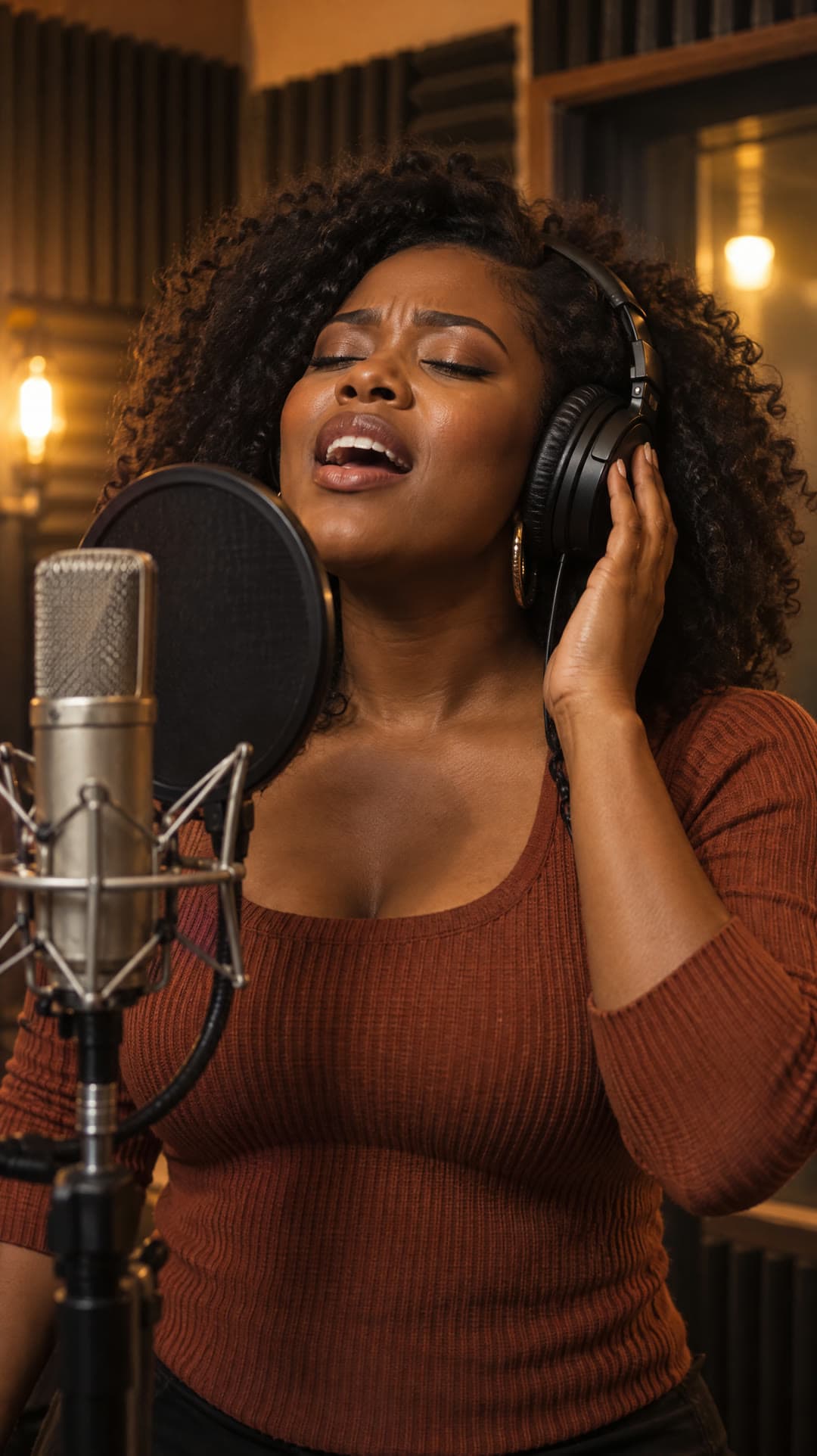
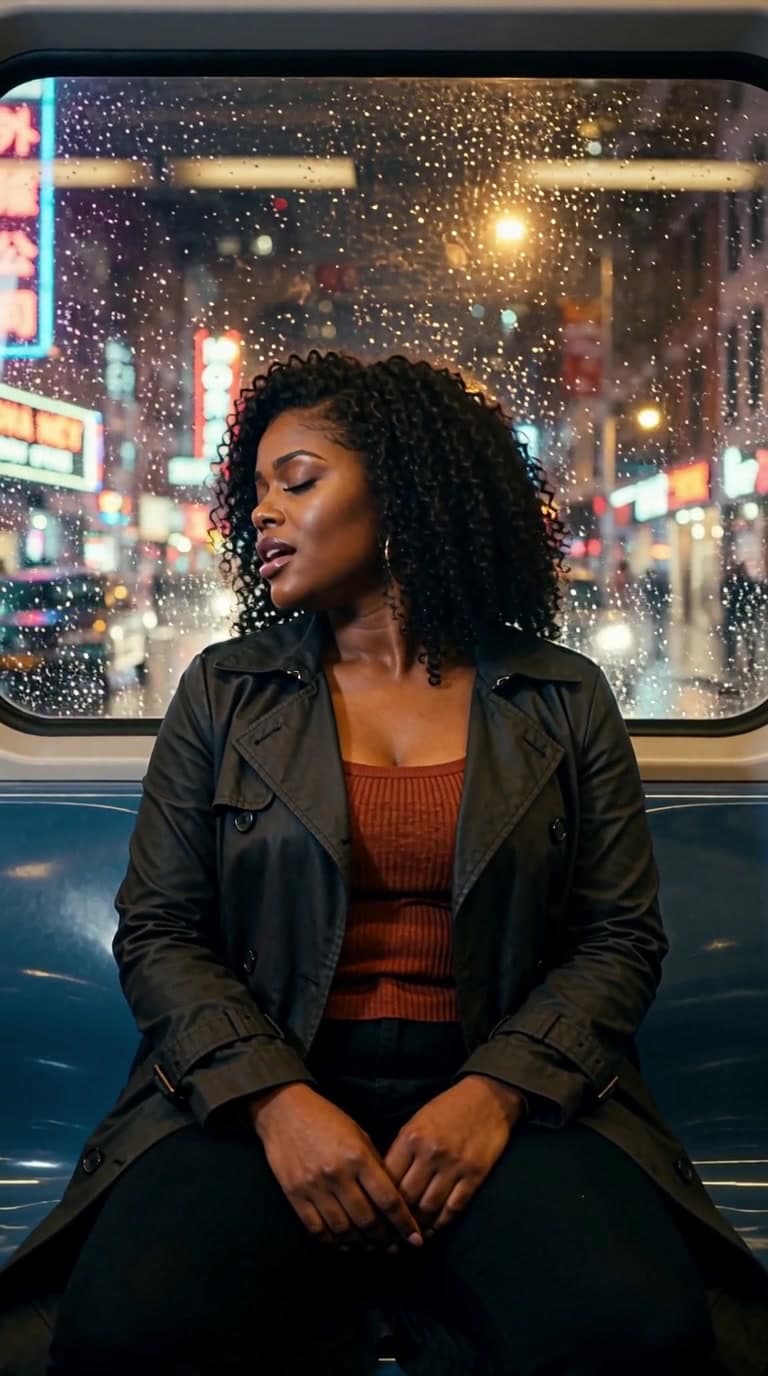
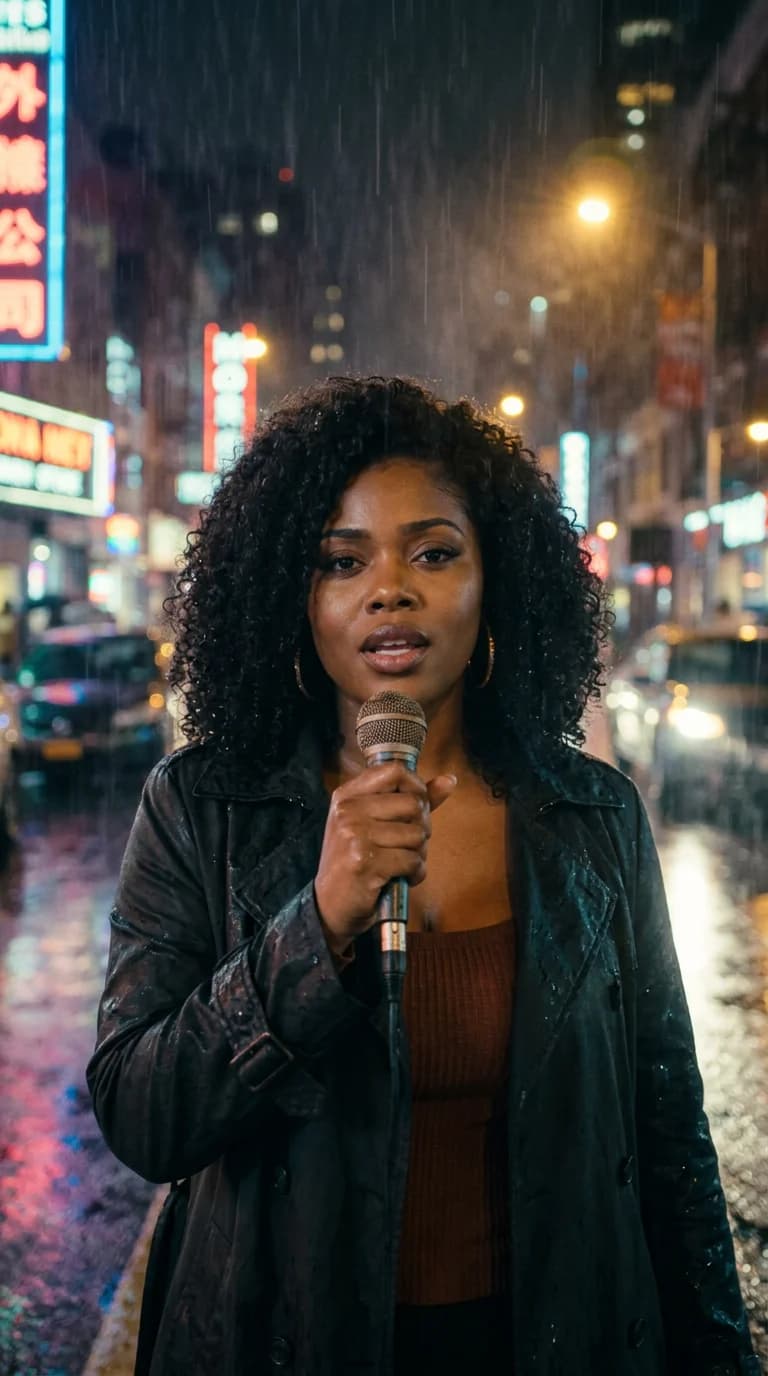
Song excerpt: Last Train Home, 0:51–1:39
The sequence moves from singing on a train to street performance, a walk through the city, a train passing overhead, and a final performance shot. The song continues over the walking and scenery shots; an environment shot does not require the music or vocals to stop.
The character remains recognizable, but the coat’s material and cut vary between shots. The walking shot approaches the character before moving alongside her, rather than following the requested side-tracking direction throughout. These are review points, not proof of a perfectly consistent character or exact prompt adherence.
Choose between a singing photo and a music video
Start with the result you actually want. Searching for an AI music video generator can lead to several different workflows:
- Make a photo sing: use a singing-video workflow when the main job is a person performing to a vocal recording. It needs a face that stays visible and an audio-driven lip-sync option.
- Make a short music video: use multiple shots when you want performance, movement and places to tell a story together. Not every shot needs visible singing.
- Make a music visualizer: use abstract motion, artwork or waveform-style visuals when you do not need a character to perform. Adding music to generated images alone does not create lip sync.
In FlyAIgh, the music-video mode currently covers 30–60 seconds of a song. The separate singing-video mode accepts a section from 10 seconds to 6 minutes. A longer singing video is not the same product promise as a full-song narrative MV.
Select the song section and plan the shots
Choose the section by listening, not just by setting a duration. Start before a useful phrase, leave room for its ending, and check the entry into the chorus. In this example, 0:51–1:39 becomes 0:00–0:48 in the exported film. The shot plan below uses video time.
| Video time | Shot type | What it does |
|---|---|---|
| 0:00–0:11 | Singing | Train-window performance introduces the character and the journey. |
| 0:11–0:22 | Singing | Street performance brings the singer closer to the viewer. |
| 0:22–0:33 | Story | Walking through the wet street advances the journey while the song continues. |
| 0:33–0:41 | Scenery | The passing train and reflections show the city; vocals continue off screen. |
| 0:41–0:48 | Singing | The video returns to the singer for the closing line of the selected section. |
Give each shot one job. This plan alternates performance with context instead of making every lyric a new close-up. Check the proposed cuts against the actual lyrics: lyric timing is a starting point for editing, not a guarantee that every cut lands on a drum beat.
Read the train shot’s recorded prompt (English)
The archived shot plan contains this instruction. It describes the intended scene and camera movement; it is not a claim that every detail was achieved.
She sits by the window of a night train, rain streaking the glass and neon city lights sliding past behind her; she sings softly to herself, eyes half-closed, lost in the memory. Slow gentle push-in.Build your music video in FlyAIgh
For a new project, use the current Music workspace. The example above used a separate train image and a shared lead image; it did not have a separately generated first frame for every shot. The current workflow lets you review individual shot frames before video generation.
- Upload your existing MP3 or WAV and select the music-video goal. You do not need to generate another song. For a Suno track, upload the downloaded audio you are entitled to use; this is not a Suno-link import step.
- Select a 30–60-second section. Listen to both edges, then inspect the lyrics and their timing. Correct recognition mistakes or import an LRC file where appropriate; inaccurate text or timing should be fixed before planning cuts.
- Upload the character reference and choose the visual direction. Describe wardrobe separately from the location. Keep hair, coat, accessories and the microphone consistent where you want continuity. Use a clear, unobstructed face for a new reference.
- Review the storyboard’s singing, story and scenery labels, durations and prompts. Inspect or replace the first frame for each shot before generating clips. A scenery shot should not accidentally inherit a singer; a singing shot needs a visible mouth.
- Choose the video model and check the quote. H3 Enhanced singing shots use the corresponding song audio as a driver. The Seedance options in this workspace do not promise lip sync. Confirm the picture, song section and shot plan before starting.
- Let the clips finish and review the assembled MP4 with sound. Download SRT lyrics separately if needed. SRT export does not burn subtitles into the MP4; add them in your editor if you want visible lyrics.
Video generation requires a paid account and credits. Generated images, video clips and additional attempts can add cost; using an existing song avoids a new song-generation step. Use the current on-screen quote rather than this example to estimate your project.
Make a music video with your song
Check lip sync, continuity and the final cut
Watch the full export once without stopping. Then replay each cut and each visible singing passage. In this example, inspect 0:11, 0:22, 0:33 and 0:41, plus the start and end of the film.
- Audio: compare the export with the selected song section. Listen for omitted words, duplicated phrases, sudden level changes and an ending that cuts off the vocal. The original song continues beyond this excerpt; a fade is not the song’s original ending.
- Lip sync: compare audible phrases with visible mouth movements in performance shots. Correct audio underneath the video does not prove that consonants, pauses or held vowels match the face. A moving mouth alone is not a pass.
- Appearance and motion: inspect the eyes, hands around the microphone, hair, coat and props. Pause at shot boundaries and compare the first frames. The coat difference in this example is already visible in its input images.
- Editing: distinguish an intentional change of location from an accidental jump. Make sure a scenery cut supports the song, and that the final image has time to settle. Review the assembled file rather than judging only individual clips.
If a generation fails, the result page offers a retry for the failed or unstarted shot. That is different from freely re-editing a finished project: once generation has started, the selected section and shot plan are locked. Fix those choices before starting, or create a new project when they need to change.
What this example verifies and further reading
This case was checked against the saved project and generation records, the original media, the complete film and its audio. Audio comparison confirmed the selected song section; it was not used as a lip-sync score. The full video received tool-assisted audiovisual review and visual checks across all five shots. We do not claim frame-accurate lip sync, a success rate or identical results across song languages.
For another view of the workflow, Adobe describes generating video clips and combining them with music. OpenArt describes an audio-led music-video workflow. These are the providers’ own explanations, not independent tests of FlyAIgh or evidence that this case has perfect synchronization.
Adobe: AI music-video workflow
OpenArt: AI music-video generator
Prepare character reference images for AI video
Keep a character consistent across shots
Frequently Asked Questions
Will the photo change the singer’s voice?
No. In this workflow, the character photo guides appearance and the uploaded recording supplies the voice. Making a photo appear to sing is not voice cloning, and it does not re-record your song in that person’s voice.
Can I use my own song or a Suno song?
Yes, upload an MP3 or WAV that you are entitled to use. The song in this example was generated with Suno and was already selected before the video was planned. Using this workflow does not itself grant rights to someone else’s recording or image.
Can I turn a whole song into a narrative music video?
The current FlyAIgh music-video mode uses a 30–60-second section. The separate singing-video mode supports 10 seconds to 6 minutes, but that is a performance workflow, not a promise of a full-song narrative MV.
Do all shots need lip sync?
No. Singing shots need audio-driven mouth movement. Story and scenery shots can carry the same soundtrack without a visible singer. In this example, the song and vocals continue during the train scenery shot.
Why does the character change clothes between shots?
First compare the input frames. A fixed face reference does not lock every garment, prop or lighting detail. Specify the wardrobe, review the frames together, and correct differences before generating video. This example’s train and street images already show different coat textures.
Does this work with songs in other languages?
The workflow is not limited to the language of the website interface, but lyrics recognition and singing quality need checking for the actual song. This example uses English. Translations of this article are not tests of songs in all those languages.
Can I download a video with lyrics on screen?
The workspace exports the video and an SRT lyric file separately. To show the lyrics in the picture, import the SRT into a video editor and render the subtitles into your final export.
Is making an AI music video in FlyAIgh free?
No. Video generation requires a paid account and credits. Check the current quote for images and video, and allow for retries. Uploading a song you already have does not make the video-generation steps free.
Make a music video with your song
Prices and capabilities for each model are on their own pages, and the price of a run is shown before you start it.
Make a music video with your song